


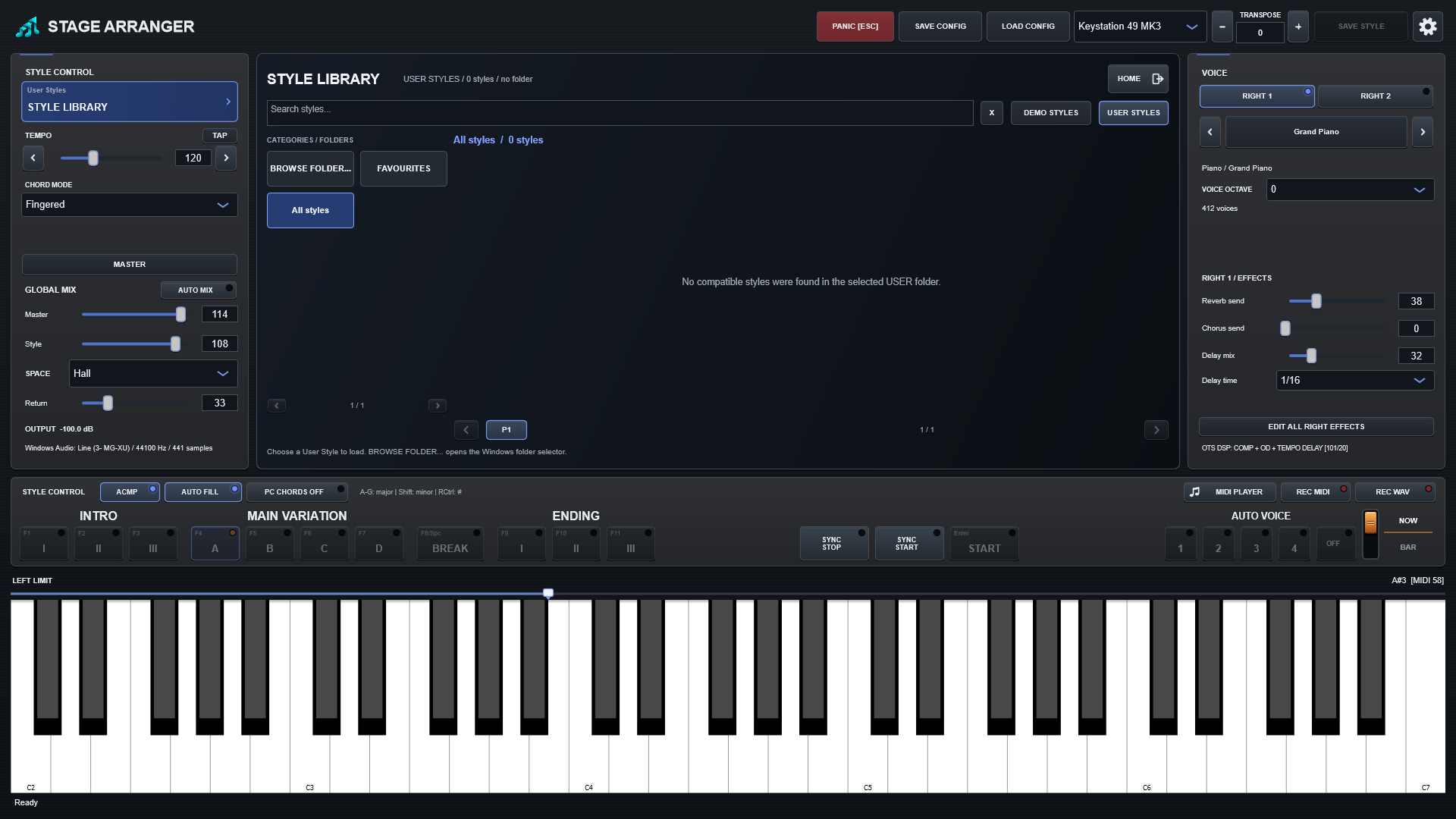
A Style is the accompaniment engine for the song. Stage Arranger separates a small DEMO STYLES area from USER STYLES that remain in folders controlled by you.
Demo Styles
The Demo Styles section is for demonstration content. Keep your own style library in User Styles and use content you have the right to use.
User Styles
Select a User Styles folder once. Stage Arranger scans compatible files from your selected folder tree and remembers the folder for later sessions. Your files stay where you placed them; Stage Arranger does not take ownership of them.
Supported files
The browser currently recognises compatible .sty, .prs, .sst and .bcs files. Stage Arranger is designed around SFF/SFF2-style arranger workflows. A recognised extension means the program can attempt to load the Style, not that every source-specific instruction can be reproduced exactly.
Where to find Styles
User-created arranger Styles are widely available independently on the Internet and in arranger-keyboard communities. Stage Arranger does not maintain a third-party download directory and does not endorse particular external collections. Download only from sources you trust and make sure you have the necessary rights or permission to use the files.
Compatibility and older arranger generations
In practice, many older SFF/SFF2 User Styles are relatively close to the mappings handled by Stage Arranger. Collections described as being for older PSR-S-era generations, including S900/S950-era files, may be useful candidates for testing, but this is only a compatibility description and not a guarantee that a particular file will play correctly.
Stage Arranger is an independent product. References to third-party formats or model generations are used only to describe interoperability and do not imply affiliation, sponsorship or endorsement.
If a Style does not sound right
- Replace an unsuitable Style-part voice where supported.
- Adjust the part Volume and Pan.
- Use HPF/LPF and EQ to correct tonal balance.
- Adjust Reverb/Chorus sends and supported DSP parameters.
- Correct the octave when a mapped instrument plays in the wrong register.
- Use Mute/Solo while identifying the part that needs work.
- Use AUTO MIX as a starting balance, then take over manually.
Performance sections
- INTRO I/II/III - introductions before the selected Main.
- MAIN A/B/C/D - the four principal variations.
- BREAK - a break section independent from Auto Fill.
- ENDING I/II/III - musical endings.
- AUTO FILL - plays a Fill when you move between Main variations.
Starting, stopping and timing
- START / STOP: start or stop the transport; a normal stop lets musical releases finish.
- ACMP: enable chord-driven accompaniment. The selected fingering mode and LEFT LIMIT determine how left-hand notes are interpreted.
- SYNC START: arm the arranger to begin from a recognised chord instead of starting immediately.
- SYNC STOP: make transport respond to releasing the chord zone in supported modes. It is distinct from the protection against accidentally dropping one chord note.
- TEMPO / TAP: set the playback speed or tap the intended beat.
- PC CHORDS: use computer-key chord entry as shown in the interface. This is an alternative input method, not a replacement for the MIDI keyboard.
- PANIC: emergency hard silence, unlike a normal musical STOP.
Variation memory
If you are on MAIN C and choose another Style, Stage Arranger keeps MAIN C when the new Style provides it. This avoids jumping back to MAIN A every time.
Chord modes
Use the Chord Mode control to choose the fingering method that matches how you play. The active mode affects chord detection, not the stored notes in the Style.
Following your left hand
New chord notes are accepted promptly, with a short grouping window for fingers landing together. Releasing a note uses a musical guard interval to avoid an unintended intermediate harmony as you lift your hand. A release-only correction changes harmony without inventing a fresh rhythmic strike. This applies across recognised chords; response depends on the chosen fingering mode and the style’s programmed rules.
Break and Main transitions
AUTO FILL links variation changes with programmed fills. BREAK is independent. For a mid-bar Break, rhythm follows the Break while pitched Main accompaniment continues to the bar line. A downbeat Break can include its authored pitched accent. Section changes follow musical timing rather than restarting every instrument at the click.
In 1.0.0, phase-entered fills retain already sounding notes until their release or the next appropriate attack. Musical tails are controlled and no extra bass re-attack is added at a Break boundary. Authored rests and accents remain. No extra chord-response setting needs enabling.
Keep your edits
SAVE STYLE writes supported Auto Voice edits. Use SAVE CONFIG for accompaniment mixer, tempo and local processing.