


The channel strips
RHY1/RHY2 are rhythm parts; BASS, CHD1/CHD2, PAD and PHR1/PHR2 form the pitched accompaniment. RIGHT1, RIGHT2 and MIC have separate strips. A fader sets level, M mutes, S solos, and the strip’s gear opens detailed editing.
| Control / setting | What it does |
|---|---|
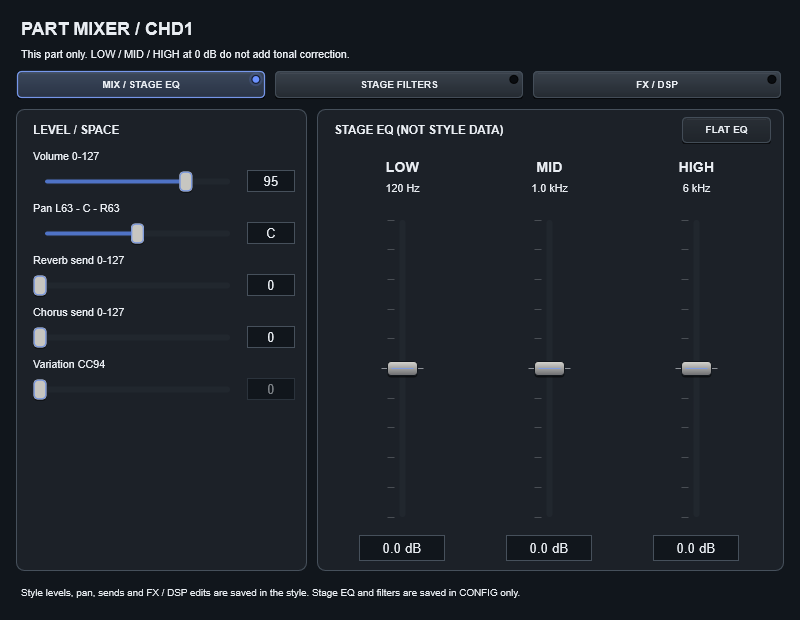
| Volume 0-127 | 0 is silent, 127 is the top of the range. Source velocity and sample level still affect perceived loudness. |
| Pan L63 / C / R63 | Displayed left/right position around centre C. Pan is not a volume percentage. |
| Reverb / Chorus send | Amount sent to the corresponding effect path. A send does not create another room or effect instance. |
| Variation CC94 | Source-style variation send/control; its audible result depends on programmed routing and the effect block. |
| MIX / STAGE EQ | Levels and sends plus local EQ. 0 dB is neutral; Flat EQ resets tonal correction. |
| STAGE FILTERS | Local HPF/LPF and tonal processing. These belong to the Stage setup. |
| FX / DSP | The programmed block and its supported editable parameters. |
Auto Mix and manual changes
AUTO MIX applies a fixed starting balance and moves the eight style faders to it. Moving one of those faders switches the Auto Mix indicator off: you are editing manually. The remaining faders stay where they were; supporting mix treatment is not abruptly stripped away. Press Auto Mix again to recall the calculated balance. It does not continuously move faders underneath your performance.
Global Mix
Master controls final level. Style controls accompaniment relative to live parts. SPACE chooses the shared environment, such as Hall, Large Hall or Room. Return sets its contribution to the mix; zero Return removes that shared ambience output.
Saving the mix
Use SAVE CONFIG for accompaniment mixer edits, sound replacements, octave shifts, local EQ/filters and global settings. SAVE STYLE currently writes supported Auto Voice edits, not accompaniment mixer changes.
Click the gear on the part you want to edit. Choose its instrument and adjust volume, pan and effects here. BROWSE SF2… lets you choose your own SF2 sound for that part.