


Try it first. Buy when your setup is ready.
Purchase becomes available after you connect a computer to your account. Check the sound, MIDI keyboard and response in the demo before paying. You do not need to use all your demo time first.
-
Create your account
Register for free and confirm your email address. Already registered? Sign in to the same account.
-
Download and install
Download the Windows installer from your account and install Stage Arranger.
-
Choosing a sound bank
In SETTINGS > SOUND BANK, select an installed bank or use BROWSE to open an .acbk or bank-index.json file. Select APPLY and wait for it to load.
Free sound banks are provided separately from the Stage Arranger installer. To play styles, download and load a compatible sound bank or use a compatible external MIDI instrument.
Open Download sound bank in your account to find separate downloads or links to external sites.
-
Connect your computer and try it
Get a connection code in Your devices and enter it in Settings > LICENSE in the program. Select your audio, musical MIDI input and sound source, load a compatible style and try the accompaniment.
-
Buy for the connected computer
If the demo suits you, choose the connected computer under Licence & payment. Review the final price and terms, then pay. Check the paid device assignment in your account and select Verify again in the program.
The demo provides 60 minutes of musical use per connected computer. It requires internet access. Leaving the window idle does not use playing time. Restarting or reinstalling does not reset time already used.
Demo and full-version functions
The full licence unlocks SAVE STYLE, REC MIDI, REC WAV and microphone recording in REC SAMPLE. These functions are unavailable in the demo. Open WAV imports an existing supported audio file and is separate from microphone recording.
Current price: $99. One-time payment. Review the final amount and available payment method in your account before confirming an order.
The price is for the software licence. Free sound banks are downloaded and loaded separately.
Step by step: from a free account to a full licence
1. Create a free account
Enter your name, email and a password, then confirm your email address. No payment card is needed.
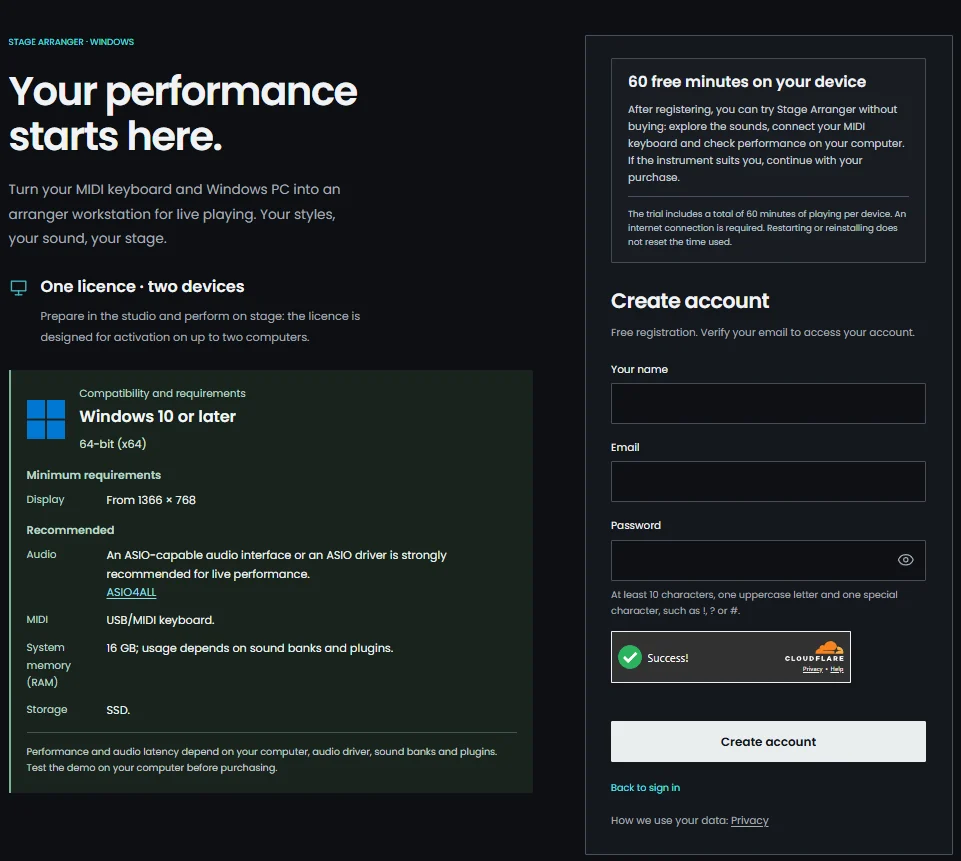
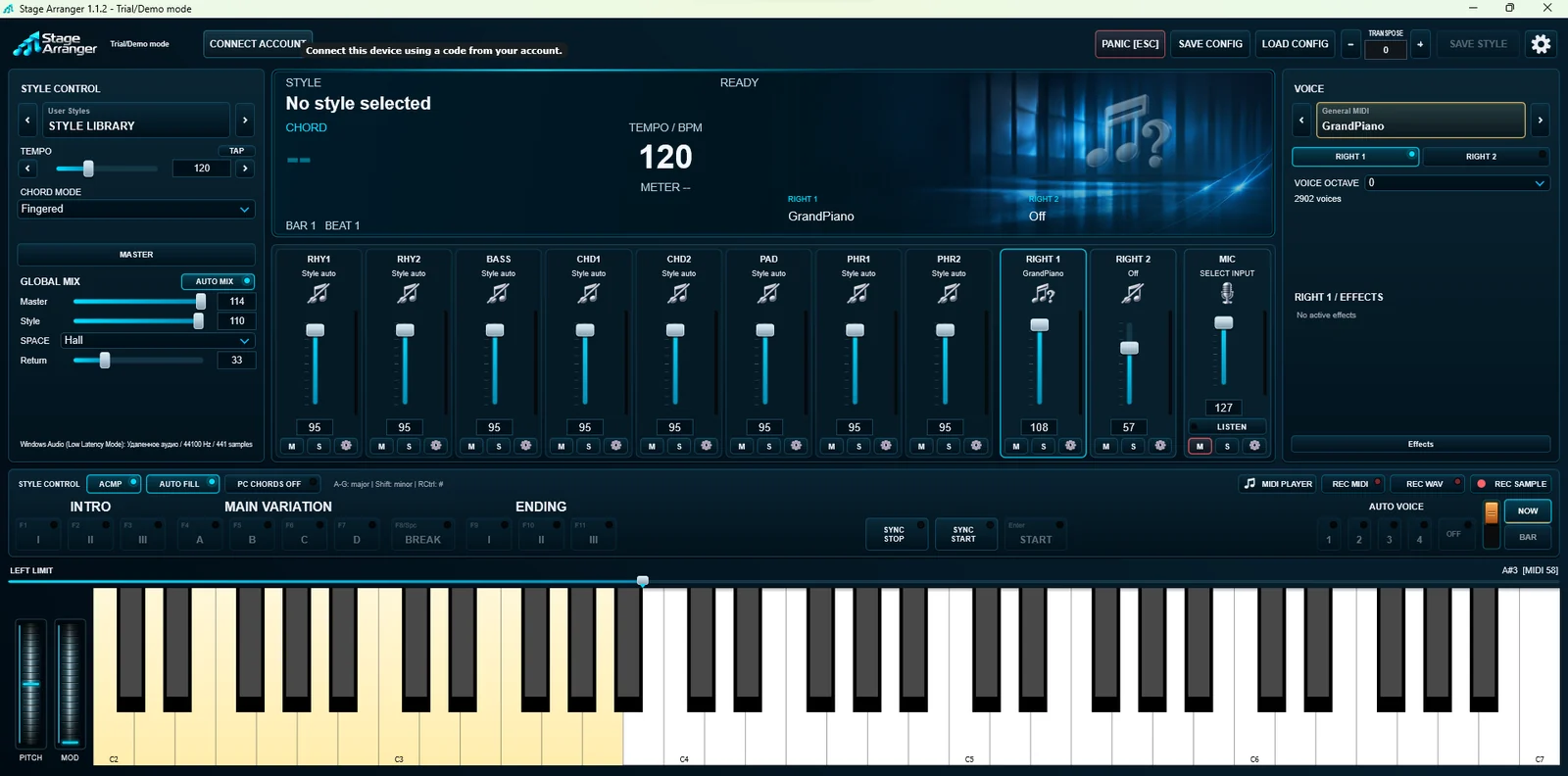
2. Install and open Stage Arranger
Download the installer from Download application in your account. Until the computer is connected, Stage Arranger shows Trial/Demo mode and the CONNECT ACCOUNT button. Separate sound bank downloads or links may be available under Download sound bank in your account.
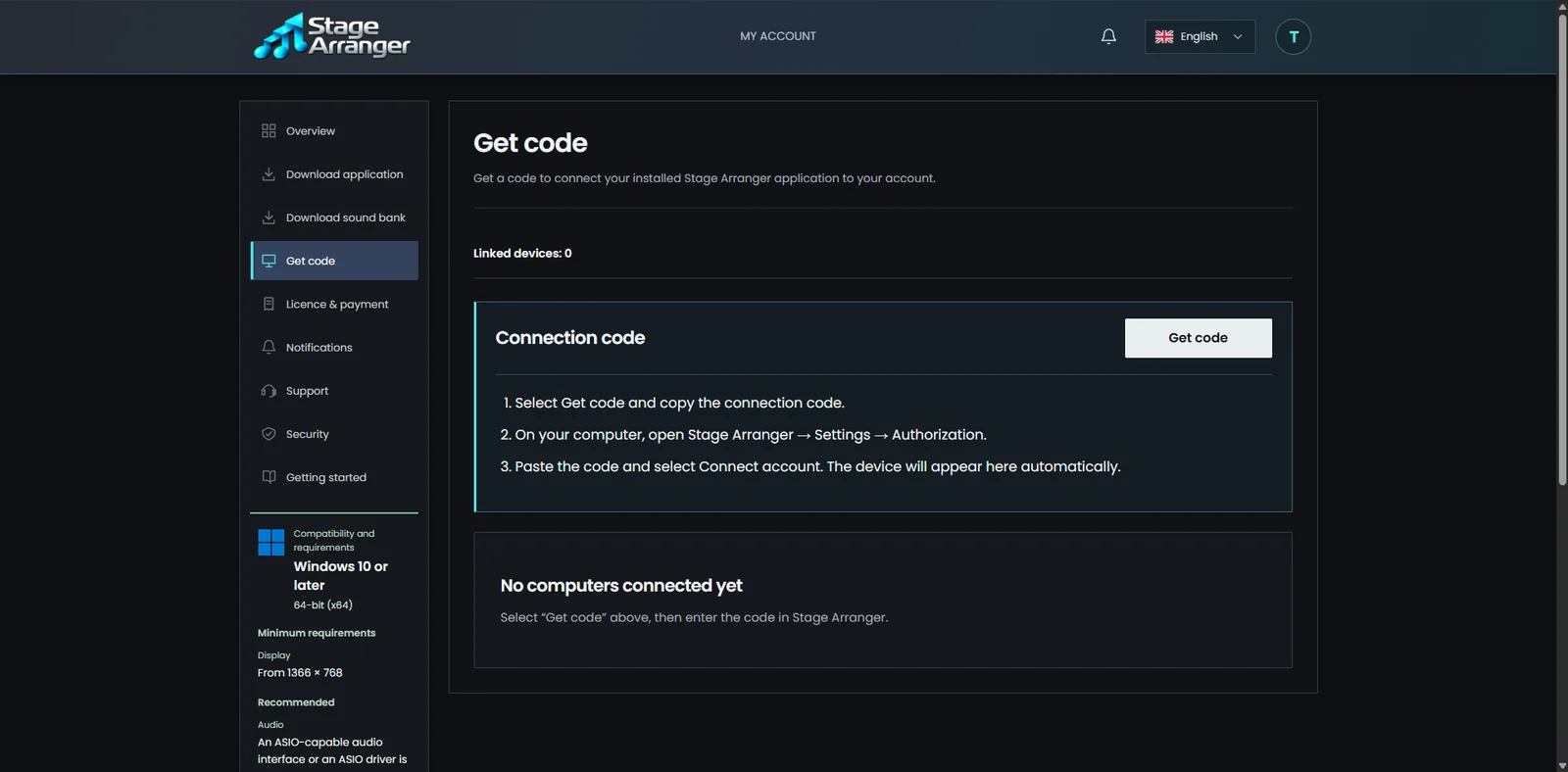
3. Get a connection code
In your account open Get code and select Get code. The code can be used once and is valid for 15 minutes. A new code replaces the previous one.
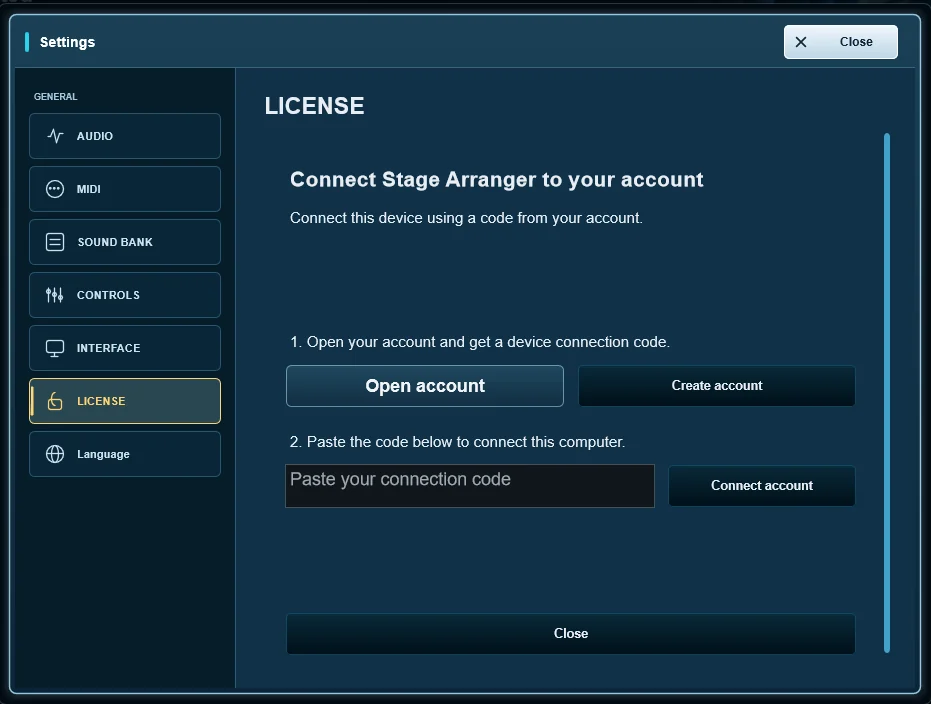
4. Paste the code in the program
In Stage Arranger open SETTINGS > LICENSE, paste the code and select Connect account. The LICENSE page then shows Ready to play and the demo time, for example DEMO 60:00. Select Continue demo and play: time is counted only while you play.
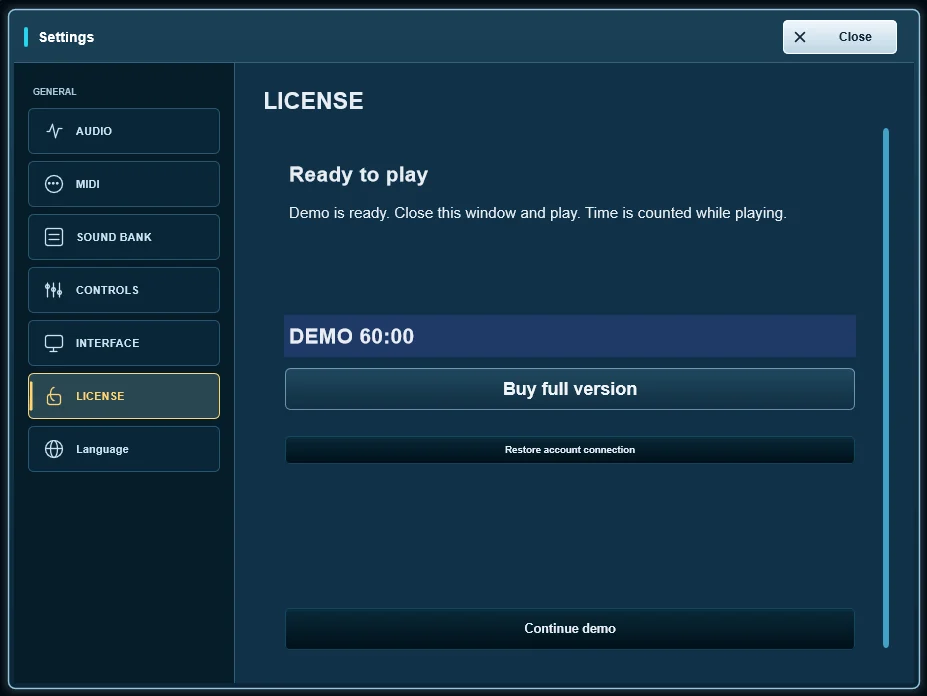
5. Play the demo and buy when you are ready
The connected computer appears under Your devices with the remaining demo time. When the demo suits you, buy a licence for this computer, then select Verify again in the program.
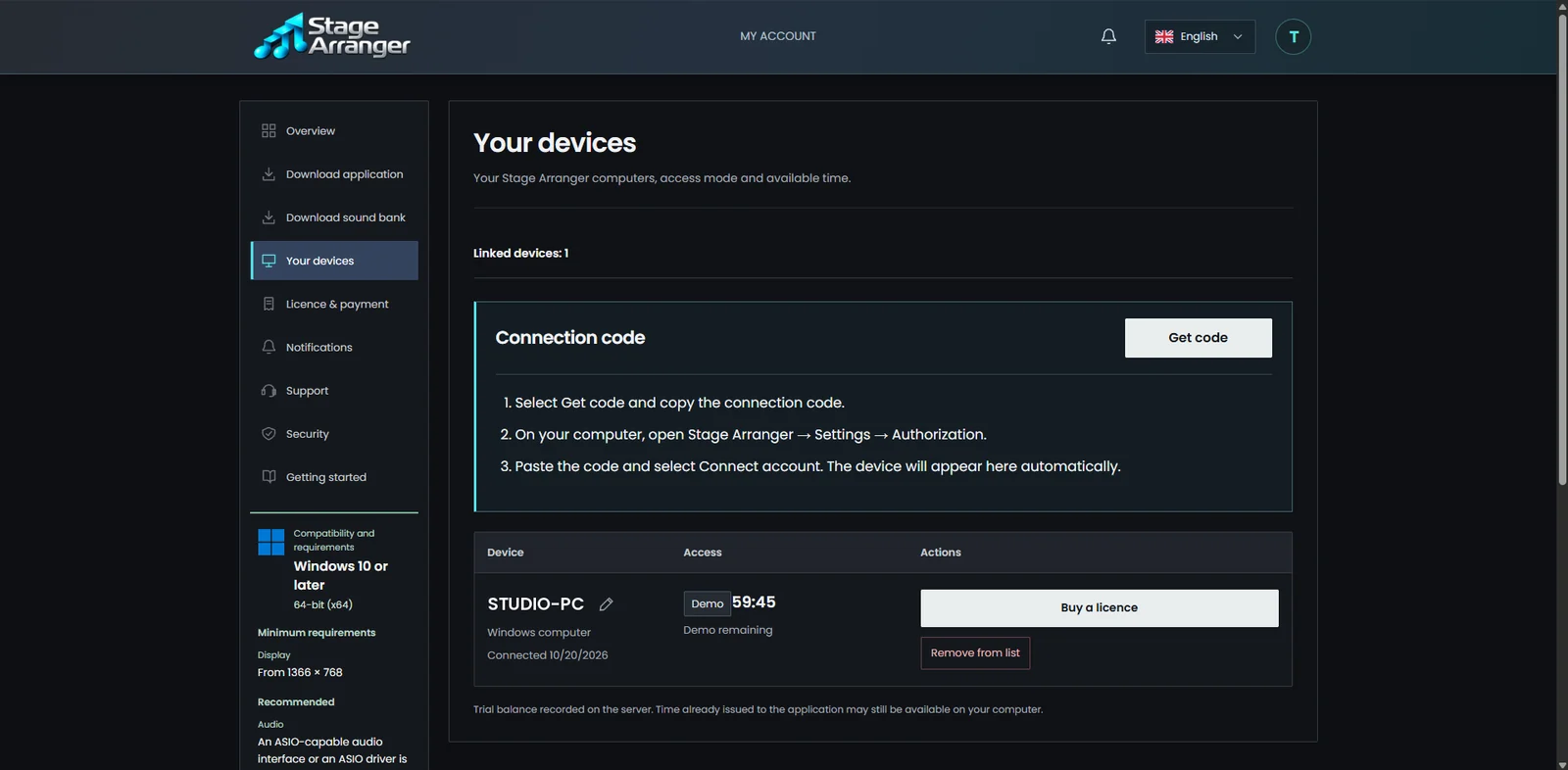
Connect this computer and activate access
- Open Settings → LICENSE or the licence status in the header.
- Open your account in the browser, sign in and create a device connection code. Paste the complete code into the program and choose Connect account. Do not enter your account password in the program.
- For full access, assign the connected device one of the 2 licence slots in the account, then choose Verify again in the program.
Connecting an account and assigning a paid licence slot are separate actions. An expired or used connection code needs a new code. For a device already connected but not activated, assign a licence slot rather than reconnecting repeatedly.
After successful online verification, a full licence allows up to 30 calendar days offline. Check the remaining time before a performance. An unavailable connection, expired permission or occupied device slots require the relevant account/network action, not deleting licence files.
The program says Assign a licence.
Your computer is connected, but no paid licence is assigned to it yet. In your account, assign an available licence to this computer, then select Verify again in the program. You do not need a new code or another purchase.
I reinstalled Windows. Do I need to buy the licence again?
No. After a reinstall Windows counts as a new installation. Install Stage Arranger, connect it to the same account with a new code and, if needed, release the old computer under Your devices. Your account shows when a device can be replaced. Keep copies of your CONFIG, styles and WAV or SF2 files separately.
The demo session expired, but I still have time left.
A demo session is a short permission that the program renews online. It can expire before your 60 minutes are used up. Restore the internet connection, reopen the program or select Verify again. The remaining time is shown under Your devices in your account.
Can I reinstall Windows or move to another computer?
One licence is for one user on up to 2 computers. After reinstalling Windows, reconnect the installation to the same account. If needed, release the old assignment in Your devices and assign a free licence slot. Replacement limits apply within 30 days; the account shows the available replacements and next allowed date. Contact support if you cannot complete the move.
Do I need a permanent internet connection?
Internet access is required for registration, downloads, connecting a computer and demo use. After a successful online check, a full licence can receive up to 30 calendar days of offline access. Check the remaining offline time in the program before a performance.
Will I have to buy updates again?
Program updates are free for licence holders. Keep using the same account. Updating normally preserves the existing connection and licence; it does not create a new purchase.